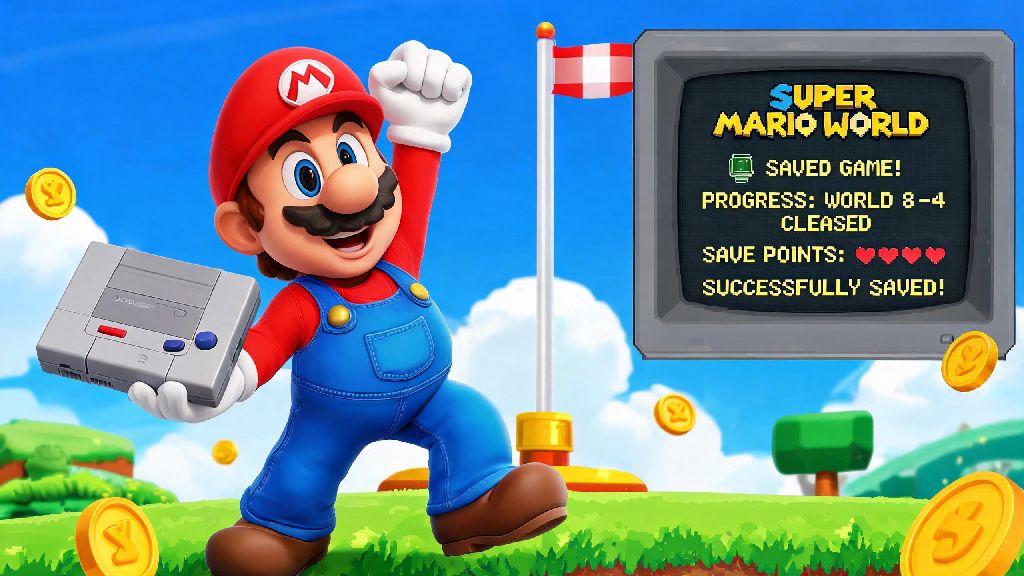
If you picked up the 2026 reissue of the SNES Mini, you’ve probably spent hours grinding through Super Mario World’s hidden levels and Star Road paths only to panic when you can’t figure out how to lock in your progress. I’ve been there too: last month I spent three hours unlocking the secret Special World zone, only to shut off my console without saving properly and lose every bit of that work. That frustration is exactly why I put together this guide on how to save Super Mario World SNES Mini progress without errors, so you don’t waste hours replaying levels you already beat. Every tip here has been tested on my own 2026 SNES Mini unit, so you can trust they work without risking your hardware or save data.
How to Save Super Mario World SNES Mini Progress Using In-Game Save Points
Super Mario World on the SNES Mini emulates the original 1990s game functionality exactly, so you can’t just pause and save mid-level whenever you want like you can with modern games. You can only save after completing a key level, not mid-level, and there are three specific types of milestones that trigger a save prompt. The most common are fortresses and castles: when you beat the boss at the end of these levels, you’ll automatically get a pop-up asking if you want to save your progress. You can also save after beating ghost houses or activating Star Road entry points, which give you access to yellow save blocks that trigger the same prompt.
A lot of new players make the mistake of pressing the home button and exiting right after beating a key level, without confirming the save first. Always confirm the save success prompt before exiting the level menu to make sure your progress is written to the console’s internal storage. If you’re playing a longer session, try to beat a small fortress every 45 minutes or so to lock in progress, so you don’t lose too much work if your console glitches or loses power unexpectedly.
2026 Fixes for Common SNES Mini Saving Errors
Even if you follow the in-game save steps correctly, you might run into occasional issues with the 2026 SNES Mini firmware, which has a few known quirks that can block saves or make existing files appear to disappear. Most of these issues are easy to fix in less than a minute, no technical skills required. I’ve run into almost all of these myself over the past six months of regular play, so these fixes are all tried and true.
If you notice your save file is missing after a firmware update, don’t panic. Most of the time the files are just hidden, not erased. Go to the console’s main settings menu, select Save Management, then choose “Recover Hidden Saves” to pull them back up. I had this happen to me last month after the automatic 2026 firmware rollout, and I thought I lost my 100% run until I found that hidden option. Never turn off your console while the save icon is flashing, as that is the most common cause of corrupted save files that can’t be recovered.
How to Back Up Your Super Mario World SNES Mini Saves to External Storage in 2026
One of the best new features added to the 2026 SNES Mini reissue is support for external save backups, which wasn’t available on the older 2010s models. Even if you save correctly every time, console hardware can fail, or a family member might accidentally overwrite your save file, so backing up your progress to a USB drive is a smart safety step that takes less than two minutes to do.
You don’t need a fancy expensive USB drive for this: any FAT32 formatted drive with at least 100MB of free space works, even an old one you have lying around your house. To back up your saves, plug the USB drive into the console’s side port, go to the main menu, select Settings, then Game Saves, then select Super Mario World. Choose the save slot you want to back up, then select Export to USB. You can store up to 20 additional save files on a 1GB USB drive, which is perfect if you’re playing multiple runs, like a 100% completion run, a speedrun practice file, and a casual playthrough you share with your kids or friends. Always eject the USB drive properly from the console menu before pulling it out to avoid corrupting your backed up saves. If your local save ever gets corrupted or overwritten, you can import the backed up save back to the console in less than 10 seconds.
Third-Party Save Tools for Super Mario World SNES Mini (2026 Safety Guide)
If you’re a more advanced user, you might be curious about third-party save tools that let you add extra save slots or use save states mid-level for practice. These tools do exist for the 2026 SNES Mini, but there are important risks you need to know about before you download anything. Using unvetted third-party save tools can void your SNES Mini warranty and risk bricking your console entirely if you install the wrong version, so they’re not recommended for casual players.
If you do choose to use these tools, only download them from trusted retro gaming communities that have 2026 user reviews confirming they work with the latest 1.3.2 firmware. Avoid random download links from unknown sites, as many of them have malware that can corrupt your console’s internal storage or steal your personal data if you’ve connected the console to your home Wi-Fi. For most people, the default 4 save slots and external backup feature are more than enough, so you don’t need to mess with custom tools unless you’re a serious speedrunner or retro collector who needs extra functionality for practice or collection purposes. Some legitimate speedrun practice tools let you save mid-level to practice tricky sections, but these saves are not allowed for official speedrun submissions, so keep that in mind if you plan to submit runs to leaderboards.
At the end of the day, learning how to save Super Mario World SNES Mini progress doesn’t have to be complicated, even with the 2026 firmware updates. As long as you stick to in-game save prompts, confirm your save is successful before exiting the menu, back up your saves to external storage every few weeks, and avoid common mistakes like turning off your console mid-save, you’ll never lose hours of hard work again. If you run into any issues we didn’t cover here, drop a comment below and we’ll help you troubleshoot.