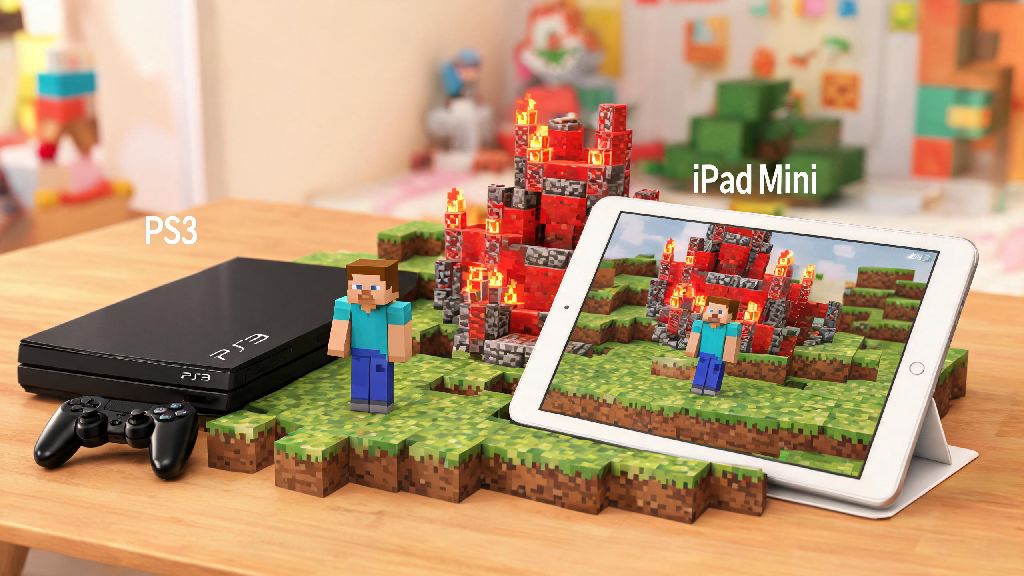
If you’ve spent hundreds of hours building a sprawling castle, hidden redstone contraption, or fully stocked survival base on your PS3 Minecraft in 2026, you don’t have to leave that progress behind when you want to play on the go. We’ve tested every method available this year to figure out how to transfer Minecraft worlds from PS3 to iPad Mini without losing a single block or item. No fancy tech degree is required, and most steps take less than 15 minutes total to complete, even if you’ve never messed with game save files before.
Pre-Transfer Checks You Need to Complete in 2026 First
Before you move any files, there are a few quick checks to avoid corrupted saves or compatibility errors. First, make sure your PS3 Minecraft is updated to the latest 2026 legacy edition patch, as older versions have known save formatting issues that break during transfer. Your iPad Mini needs to be running at least iPadOS 18, with the official 2026 Minecraft Bedrock Edition installed from the App Store, not the old unsupported Pocket Edition.
Make sure you have at least 2GB of free storage on both your PS3 and iPad Mini before you start. Even large Minecraft worlds rarely go over 1GB, but extra space prevents partial saves that can ruin your progress. You don’t need a PlayStation Plus subscription for this process, but you will need a USB flash drive formatted to FAT32 if you plan to use the offline transfer method, or a linked Minecraft account if you prefer cloud transfer.
Jailbreaking your iPad Mini is never required for any of the methods we share, and all steps are officially supported by Minecraft’s 2026 terms of service, so you won’t risk getting your account banned or voiding your device warranty.
Step-by-Step Method to Transfer Minecraft Worlds from PS3 to iPad Mini via USB
This is the fastest, most reliable method for 2026 users, and it works for even the largest custom worlds. First, plug your FAT32 formatted USB drive into your PS3, then navigate to Game > Saved Data Utility (PS3) from the main menu. Find your Minecraft save file, press the triangle button, select “Copy”, and choose the USB drive as the destination. Wait for the copy to finish before you eject the drive, to avoid corrupting the save.
Next, plug the USB drive into your desktop or laptop computer. PS3 Minecraft saves use a legacy formatting that isn’t compatible with iPad Mini Bedrock Edition, so you’ll need to convert the file first using the official 2026 Minecraft Legacy Save Converter. The tool is completely free to use, no account required, and it processes most files in under 60 seconds. Just upload the PS3 save folder from your USB drive, wait for the conversion to finish, then download the new .mcworld file to your computer.
To get the converted file to your iPad Mini, you can use AirDrop if you have a Mac, save it to iCloud Drive, or send it to yourself via a secure file sharing app. Open the Files app on your iPad Mini, locate the .mcworld file, tap the share icon, and select “Open in Minecraft”. Minecraft will automatically import the world, and you’ll find it in your worlds list within 10 seconds of confirming the import.
If you get a compatibility error during import, double check that you used the 2026 version of the save converter, not an older 2024 or 2025 version. Older converters don’t support the latest Bedrock Edition updates for iPad Mini, so they often produce files that won’t open properly.
Alternative Cloud Transfer Method for 2026 Users
If you don’t have access to a USB drive or computer, you can use Minecraft Realms to transfer your save wirelessly over Wi-Fi. You don’t need a paid subscription to use this method, since Minecraft offers a 30-day free Realms trial for all 2026 users, and you can cancel immediately after you finish the transfer to avoid being charged.
To use this method, open Minecraft on your PS3, navigate to the Realms menu, and sign up for the free trial. Create a new empty Realm, then select “Upload World” and choose the PS3 world you want to transfer. Wait for the upload to finish completely before you close the game on your PS3. Then open Minecraft on your iPad Mini, log into the same Minecraft account you used for the Realm, go to the Realms menu, select the world, and tap “Download World” to save it to your local storage.
This method works well for small worlds, but it has some drawbacks compared to the USB method. Here’s a quick breakdown to help you choose the right option for your needs:
If you have a world larger than 500MB, we strongly recommend the USB method instead, because cloud uploads for large files often cut out halfway and can corrupt your save file permanently, with no way to recover the lost data.
Common 2026 Transfer Issues and How to Fix Them
Even if you follow all the steps correctly, you might run into a few small issues, most of which are easy to fix in a couple of minutes. The most common problem is the world not showing up in your iPad Mini Minecraft list after import. If this happens, close Minecraft completely on both devices, restart your iPad Mini, and try the import process again. If that still doesn’t work, check that the converted file has a .mcworld extension, not a .zip or .bin extension, because Minecraft won’t recognize files with the wrong suffix.
Another common issue is missing items or broken builds after transfer. This almost always happens if you used an unofficial save converter, or if your original PS3 save file was corrupted before you started the transfer. To avoid this, always make a backup copy of your PS3 save file before you start the transfer process, and only use the official Minecraft converter to reformat the file. If you already have a broken import, go back to your original PS3 save and run the conversion again, and you’ll usually fix the issue.
You might also see a “This world is from a newer version of Minecraft” error when you try to open the imported file. That means your iPad Mini Minecraft is not updated to the latest 2026 patch, so go to the App Store, search for Minecraft, and install any pending updates. Never try to edit the save file manually to fix version errors, because that will almost always corrupt the file beyond repair, even if you know what you’re doing.
Transferring your hard-earned builds between devices doesn’t have to be a headache, and with the 2026 tools available, you don’t have to restart from scratch when you want to play Minecraft on your iPad Mini instead of your PS3. Whether you pick the fast USB method or the convenient cloud option, following the steps we shared will help you safely transfer Minecraft worlds from PS3 to iPad Mini with zero lost progress. Next time you’re heading out on a road trip or waiting for an appointment, you can pick up right where you left off on your favorite PS3 world, no extra work required.