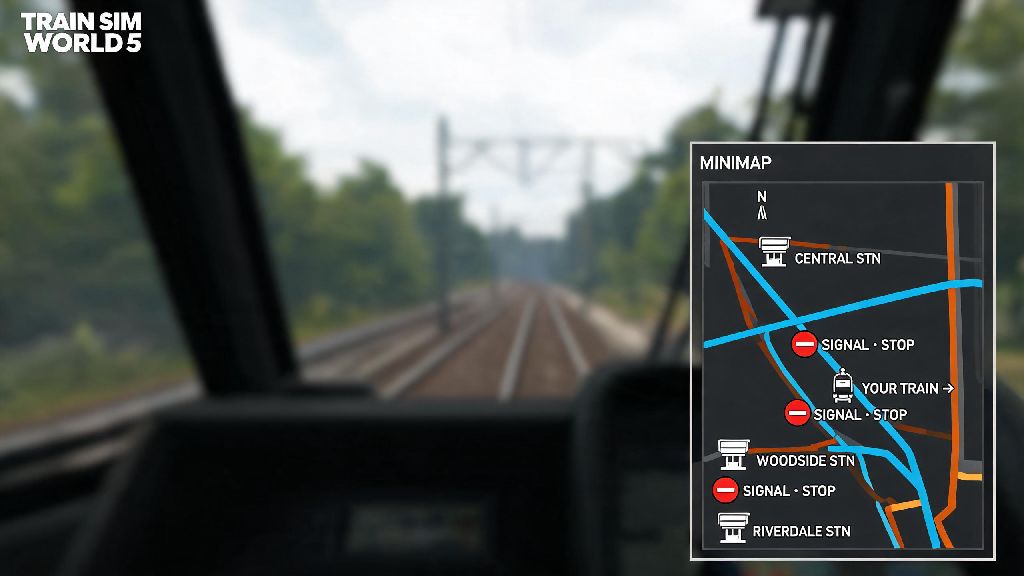
If you've spent any time playing Train Sim World 5 in 2026, you've probably had that panic moment when you round a bend and spot a red signal too late to slow down, or miss a junction turn that sends you 10 miles off your assigned route. Most new players brush off the mini map as useless UI clutter until they realize it's the single most reliable tool to stop those frustrating restarts. Learning how to use mini map in Train Sim World 5 doesn't just make your runs smoother—it can also help you nail those perfect on-time arrival ratings that unlock new locomotives and route DLC. I've put in over 200 hours on TSW5 this year, and I still rely on the mini map for every single run, even on routes I've driven dozens of times before.
How to Use Mini Map in Train Sim World 5: Basic Setup for First-Time Users
When you first boot up TSW5 in 2026, the mini map is tucked away in the lower right corner by default, but a lot of new players turn it off because they think it breaks immersion. But if you're still learning routes, that's a huge mistake. First, head to your settings menu under Interface > HUD Elements to adjust the size and opacity so it doesn't block your view of the track ahead. I recommend setting opacity to 60% and size to medium, so you can glance at it quickly without taking your eyes off the controls for too long.
You can also toggle it on and off mid-run with the F5 key on PC, or the down d-pad button on console, so you can hide it when you want to take screenshots of scenic routes. Don't set the size too large, because it will cover your speedometer and signal alert icons, which are equally important for safe runs. It only takes 2 minutes to adjust these settings, and it will make a world of difference for your next route run.
Key Mini Map Icons You Need to Memorize for Error-Free Runs
The mini map doesn't just show you the track ahead—it's packed with tiny icons that give you real-time updates on conditions you can't see yet, even if you're driving on a foggy or rainy day. Most new players only notice the blue dot that marks their current position, but the other icons are the real value here. Knowing what each icon means is half the battle when you're figuring out how to use mini map in Train Sim World 5 effectively.
I used to ignore these icons my first month playing TSW5, and I ended up with 12 penalty points in a single run that made me lose my license for the passenger route I was trying to unlock. Once I memorized each icon, my penalty rate dropped by 80% almost immediately. For players who want to go the extra mile, you can customize the color of each icon in the interface settings if you have color vision deficiencies, which is a new feature added in the 2026 spring update.
Advanced Mini Map Tips for Long-Haul Route Runs
Once you've got the basics down, you can use the mini map for more than just avoiding immediate mistakes, especially on long routes that run for 2 or more hours of real time. One trick I swear by is zooming the mini map out to 2x range when you're traveling on high-speed stretches—it gives you an extra 30 seconds of reaction time for upcoming signals or junctions, which makes a huge difference when you're traveling at 125 mph. You can zoom in and out with the mouse wheel on PC, or the left and right bumpers on console.
Another great use for the mini map is tracking other trains on shared routes. If you see a small grey dot moving ahead of you on the map, that's another service on the same line, so you can adjust your speed to keep a safe distance instead of getting stuck at a red signal for 10 minutes waiting for it to pull ahead. That's one of the most underrated perks of knowing how to use mini map in Train Sim World 5 for long trips.
I also recommend using the mini map to plan your braking for steep downhill stretches. You can see the grade change 2 miles ahead, so you can start applying gradual brakes instead of slamming them on at the last second and risking a derailment. Don't forget that the mini map updates in real time, so if dispatch changes your route mid-run, the yellow dotted line will appear immediately to alert you of the new junction path.
Common Mini Map Mistakes to Avoid in 2026
Even experienced TSW5 players make mistakes with the mini map that cost them perfect run ratings, so it's worth watching out for these common pitfalls. First, don't rely entirely on the mini map and ignore the actual track ahead. The mini map doesn't show temporary speed restrictions from track work, or animals that wander onto the line, so you still need to pay attention to what's in front of you. I learned this the hard way last month when I was staring at my mini map and hit a deer that was crossing the track, which added 20 minutes to my run time and got me a major penalty.
Second, don't leave the mini map zoomed in all the time. If you're only seeing ¼ mile of track ahead, you won't have enough time to react to sudden changes, especially on high-speed lines. Stick to 1x zoom for suburban routes with frequent stops, and 2x zoom for intercity high-speed runs to get the best balance of detail and advance warning.
Third, don't turn off the mini map entirely if you're going for a realistic playthrough. A lot of players think it's cheating, but real train drivers have access to route information displays that work exactly like the TSW5 mini map, so it's actually more realistic to use it than to try to memorize every signal and junction on a 50-mile route. The only time I turn mine off is when I'm driving a heritage route with 1950s locomotives that wouldn't have had modern navigation tools.
At the end of the day, learning how to use mini map in Train Sim World 5 is one of the fastest ways to go from a frustrated new player to a reliable driver who nails on-time arrivals every single run. You don't have to use every single feature right away—start with adjusting the display settings to fit your playstyle, then memorize the core icons, and add advanced tricks as you get more comfortable. If you spend 10 minutes practicing with the mini map on your next route run, you'll notice a huge difference in how few mistakes you make, and you'll have more fun playing without constant restarts. I've shared this guide with all the new players in my TSW5 online group, and every single one of them has said it cut their learning time in half. Give it a try on your next run, and let me know how it goes in the comments below.