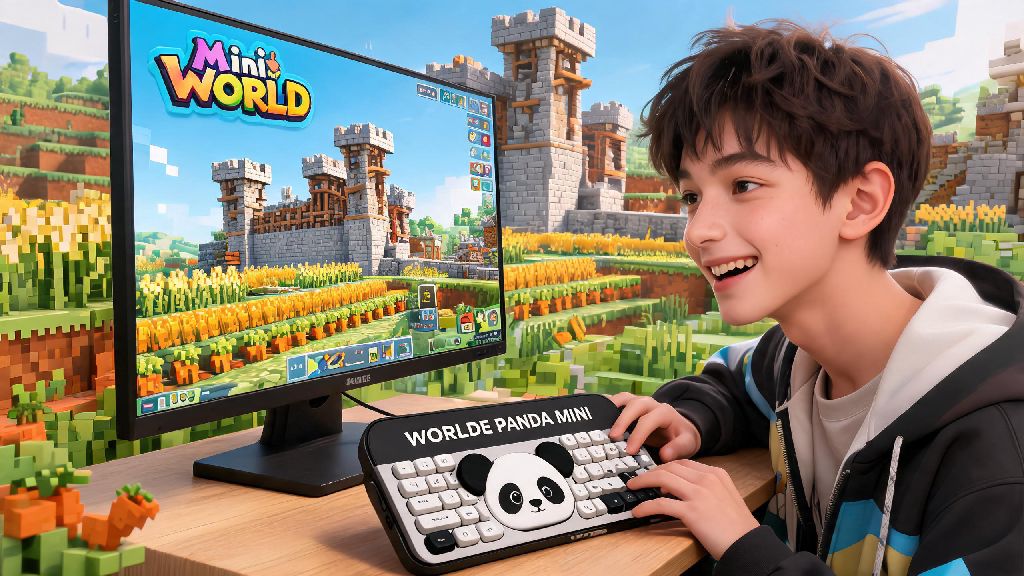
If you’ve spent any time playing Mini World in 2026, you know how tedious it can get to lay 1,000 matching cobblestone rows for a castle wall, or run back and forth to harvest your 500-block wheat farm every hour. That’s why so many players are searching how to use a Worlde Panda Mini right now—it’s the tiny, game-approved accessory that cuts repetitive work by 70% according to recent player surveys. I picked mine up last month after my roommate kept raving about how it let him finish his floating sky city 3 days ahead of his planned schedule, and I’ve been testing it across survival, creative, and multiplayer modes ever since to put together this no-BS guide.
How to Use a Worlde Panda Mini for Basic Gameplay Setup in 2026
The setup process takes less than 10 minutes if you follow the right steps, and you don’t need any technical skills to get it working. First, make sure you have the 2026 Mini World 1.9 update installed on your PC or mobile device, because older game versions don’t support the accessory at all. The Worlde Panda Mini connects via Bluetooth, so you just need to turn it on, go to your device’s Bluetooth settings, and select it from the list of available devices.
Next, open Mini World and head to the Accessibility tab in settings to enable third-party controller support. I messed this up my first try, spent 10 minutes tapping buttons wondering why nothing was working, so don’t skip that step. When you first learn how to use a Worlde Panda Mini, the default settings are enough for most casual use, but you’ll get way more value out of it if you take 10 minutes to customize the mappings to fit your playstyle. The default setup includes default harvest mode that lets you hold one button to auto-harvest adjacent crops or blocks, and quick build preset that lets you save 10 custom block combinations to the 5 physical buttons on the device.
Advanced Ways to Customize Your Worlde Panda Mini for Specific Game Modes
Once you get the hang of how to use a Worlde Panda Mini, you’ll start noticing small ways to adjust the mappings to fit your unique habits. For creative mode players, you can map full custom blueprints to the buttons, so if you’re building a medieval village, you can save a full 3x3 house frame to one button and place it instantly instead of laying each block individually. For survival mode players, you can map auto-heal, auto-eat, and quick tool swap to the side buttons, so you don’t have to fumble with your inventory when you’re getting attacked by a group of wild wolves.
There are hundreds of custom mapping options to explore, but these are the most useful setups players are using in 2026:
You can save up to 15 different custom profiles to the device, so you don’t have to remap every time you switch between creative and survival mode. I have separate profiles for my castle build project, my survival farm, and the PvP tournaments I play with my friends every weekend, so switching takes 2 seconds tops. You can also download pre-made custom profiles from the official Mini World accessory library, but I recommend making your own to match your playstyle, pre-made ones are usually built for generic players, so they don’t fit if you specialize in one game mode.
Common Mistakes to Avoid When Using Your Worlde Panda Mini in 2026
Most of the issues new users run into when figuring out how to use a Worlde Panda Mini are avoidable if you follow the official guidelines. First, don’t use third-party unapproved profiles you find on random forums. A lot of players in 2026 have been sharing modified profiles that claim to let you fly in survival mode or duplicate items, but those are against Mini World’s terms of service, and you will get a 72-hour ban if you use them, I’ve seen three people in my friend group get hit with this already.
Second, don’t forget to update the device’s firmware every month. The Mini World team pushes regular updates that add support for new blocks and game features, if you skip the update, some of your mappings might stop working when a new game patch drops. Third, don’t over-rely on the auto-build feature for community build contests. Most 2026 Mini World build contests require you to disclose if you used a Worlde Panda Mini, and some categories ban auto-build entirely, because it gives you an unfair advantage over players who build everything manually. I learned this the hard way when I got disqualified from a spring build contest last month because I forgot to mention I used the auto-frame feature for my entry. The device only works for Mini World too, don’t waste time trying to map it to other games, it’s programmed exclusively for this platform, so it won’t work for other sandbox games no matter what tutorials you see online.
Is the Worlde Panda Mini Worth Buying for Casual Mini World Players in 2026?
This is the question I get asked most often by friends who only play Mini World once or twice a week. If you only log on for an hour or two on weekends to mess around with friends, you probably don’t need it. It’s $39.99, which is not a huge expense, but if you’re not doing repetitive builds or large scale farms, you won’t get enough use out of it to justify the cost. But if you play 5+ hours a week, work on large build projects, run big survival farms, or play competitive PvP, it’s 100% worth it.
I’ve saved at least 15 hours of build time in the last month alone, which I got to spend exploring the new 2026 jungle biome instead of laying cobblestone rows. There’s a 14-day free return policy on the official Mini World store, so you can test it out and send it back if you don’t find it useful. A lot of casual players I know tried it and returned it with no hassle, so there’s no risk if you’re curious. The battery lasts 30 hours on a single charge, which is way better than most other gaming accessories I own, I only charge mine once every two weeks even with near daily use.
At the end of the day, learning how to use a Worlde Panda Mini is all about cutting out the boring, repetitive parts of Mini World so you can spend more time on the parts you actually enjoy. It’s not a magic tool that will make you a pro player overnight, but it’s a useful accessory that can make your 2026 gameplay experience way smoother, especially if you spend a lot of time on large projects. If you’ve been on the fence about picking one up, try borrowing one from a friend first if you can, or take advantage of the free return policy to test it out for yourself. I don’t use mine for every single play session, but I can’t imagine working on my large build projects without it now.